Settings and Options
Settings and Options
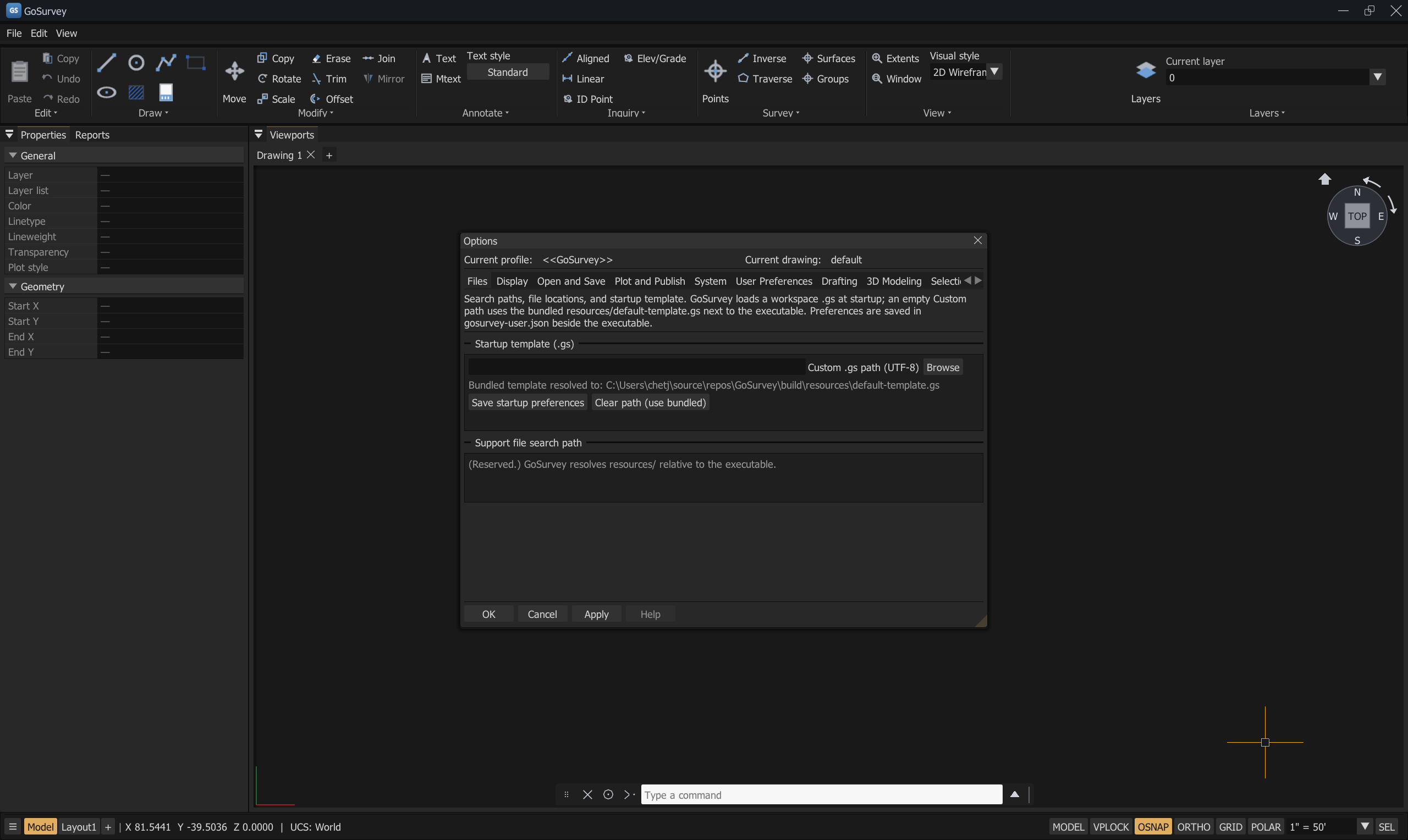
View → Settings…, or right-click in the viewport ▸ Options…
The dialog has eleven tabs. Apply writes the settings to gosurvey-user.json beside the
executable and confirms Settings applied (gosurvey-user.json).; a failure says
Error: failed to write gosurvey-user.json (check directory permissions).
The top of the dialog reports the Current profile (<<GoSurvey>>) and the Current drawing.
Drawing units are a separate dialog —
UNITS/UN/DDUNITS. See the end of this page.
Files
Search paths, file locations, and the startup template.
| Control | What it does |
|---|---|
| Startup template (.gs) — Custom .gs path | The .gs new drawings start from |
| Browse | File dialog (Windows only in this build) |
| Clear path (use bundled) | Falls back to resources/default-template.gs beside the executable |
| Save startup preferences | Writes gosurvey-user.json |
The tab reports where the bundled template resolved to, or says it was not found. See Files and Drawings.
Display
Window elements
| Setting | Default | What it does |
|---|---|---|
| Color theme | Dark | Dark or Light |
| Display scroll bars in drawing window | Scroll bars on the viewport | |
| Use large buttons for Toolbars | Larger ribbon buttons | |
| Resize ribbon icons to standard sizes | Normalises icon sizes | |
| Show ToolTips | On | Master tooltip switch |
| Show shortcut keys in ToolTips | Only when tooltips are on | |
| Show extended ToolTips | Only when tooltips are on | |
| Show rollover ToolTips | Hover tooltips | |
| Display File Tabs | On | The drawing tab bar |
Layout elements
| Setting | What it does |
|---|---|
| Display Layout and Model tabs | The Model/layout tabs on the status bar |
| Display printable area | Shows the printable margin on a sheet |
| Display paper background | Draws the sheet |
| Display paper shadow | Only when the paper background is on |
| Show Page Setup Manager for new layouts | Opens Page Setup automatically for a new layout |
| Create viewport in new layouts | Adds a viewport to each new layout |
Display resolution
| Setting | Notes |
|---|---|
| Arc and circle smoothness | Tessellation of curves |
| Segments in a polyline curve | Hint for spline-fit polylines (not currently consumed; reserved). |
| Rendered object smoothness | Reserved for 3D pipeline. |
| Contour lines per surface | Reserved for 3D pipeline. |
Display performance
Pan and zoom with raster & OLE, Highlight raster image frame only, Apply solid fill, Show text boundary frame only, Draw true silhouettes for solids and surfaces.
The dialog notes: (GoSurvey is 2D-only; raster/OLE/3D options are placeholders.)
Crosshair
Crosshair size, Crosshair details, Color, Line thickness (px).
Zoom
| Setting | Range |
|---|---|
| Wheel zoom factor | 1.01x to 3.00x per notch |
The tab also reports the current zoom and pan values.
Fade control
Xref display — (Reserved: fade is a placeholder; no fade pass is applied yet.)
Open and Save
File-format and recovery options. No GoSurvey-specific controls in this section yet.
Plot and Publish
Default plot settings. No GoSurvey-specific controls in this section yet. Plot settings live per layout in the Page Setup Manager — see Plotting.
System
Graphics
Reports the video card, driver version, and virtual device as the driver names them.
| Setting | What it does |
|---|---|
| Hardware Acceleration | Disable only if you are experiencing graphics issues or have an incompatible video card |
| Smooth line display | Removes the jagged effect on the display of diagonal lines and curved edges in 2D wireframe |
| Accelerated font display | Improves the display of TrueType fonts using GPU acceleration |
| Video Memory Caching Level | Higher = more video memory used for graphics cache |
| Prefer the integrated GPU (saves battery, slower) | Requests the integrated GPU. The tab reports whether the request took effect |
3D Display Settings — Fast shaded mode, Advanced material effects, Full shadow display, Per-pixel lighting (Phong). Marked as placeholders for future surface viewing.
General options
Display OLE Text Size Dialog, Beep on error in user input, Allow long symbol names, Automatically check for certification update, Access online content when available, Store Links index in drawing file, Open tables in read-only mode.
Updates
| Setting | Default | Effect |
|---|---|---|
| Check for updates on startup | On | Turn off and GoSurvey makes no network requests at all |
| Include beta releases | Off | Receive pre-release builds |
The version is shown, along with any version you have chosen to skip.
User Preferences
Right-click customization
Choose what right-click does with no selection, with a selection, and during a command — and whether a quick click means ENTER (time-sensitive right-click).
Press Right-click Customization… to open the dialog. Three groups, each set to Repeat Last Command or Shortcut Menu:
| Group | When it applies |
|---|---|
| Default Mode | No command running, nothing selected |
| Edit Mode | No command running, objects selected |
| Command Mode | A command is running |
Time-sensitive right-click:
| Control | Effect |
|---|---|
| Turn on time-sensitive right-click | Quick click = ENTER; longer click = Shortcut Menu |
| Longer click duration | Milliseconds. Default 250 |
Windows standard behavior is offered alongside. See Object Selection.
Label templates
Survey point label templates and the Apply all templates to survey points action — see Survey Points.
Text & MTEXT screen size
TEXT min px / TEXT max px and MTEXT min px / MTEXT max px — the on-screen size bounds text is drawn within, so annotation stays legible without becoming a wall at high zoom.
Dimensions
| Setting | What it does |
|---|---|
| Extension line px, Dimension line px | On-screen line weights |
| Arrow size scale | Multiplies arrow length derived from dimension text height (paper × plot scale) |
| Value text min px / max px | Screen-size bounds for dimension text |
Undo / Redo
Undo history is per drawing tab and cleared when the tab is closed.
History size (steps) — the maximum steps kept per tab. Older steps are discarded when the limit
is reached. A history log is written to %APPDATA%\GoSurvey\history.log.
Drafting
The object-snap and survey-point display settings.
Object snap
Cursor snaps to drawing geometry when OSNAP is on (status bar or F3).
| Setting | Default | What it controls |
|---|---|---|
| Enable object snap | On | Same switch as F3 and the status-bar OSNAP button |
| Aperture (screen px) | 14.0 | How near the cursor must be, in screen pixels, for a snap to be offered |
| Snap indicator half-size (px) | 15.0 | Size of the snap glyph drawn at the candidate point |
Then the eight snap types:
Endpoint · Midpoint · Center (circle / ellipse center) · Perpendicular (when a reference point applies) · Survey point · Geometric center (closed polyline) · Intersection (objects that actually meet) · Apparent intersection (objects that only look like they meet)
The same list is on the right-click menu of the status-bar OSNAP button. See Object Snaps.
Survey point display
| Setting | What it does |
|---|---|
| Show point ID in viewport | Draws the number beside the marker |
| Coordinate display precision (decimals) | For survey-point coordinates and labels, independent of the general display precision |
| Cross span (plotted inches) | Horizontal span of the X on paper: world size = span × model units per plotted inch |
| Label center east of point (plotted in) | Label offset |
| Label center north of point (plotted in) | Label offset |
| Leader arrow — Color, Arrow half-width (px) | Shown when the label is dragged away from its point |
Plus the per-style label templates with an Edit Template editor. See Survey Points.
3D Modeling
GoSurvey is 2D; 3D options are reserved. No GoSurvey-specific controls in this section yet.
This tab label predates the 3D work. Elevations, orbit, visual styles, TIN surfaces, and model import all work — they are just not configured from here.
Selection
| Setting | Notes |
|---|---|
| Grip size (px) | 2 to 20. Grips appear as blue squares on selected entities and can be snapped to |
Profiles
Saved option profiles. Current: <<GoSurvey>>. No GoSurvey-specific controls in this section
yet.
AEC Editor
Civil/AEC-specific editor preferences. No GoSurvey-specific controls in this section yet.
Drawing Units — UNITS
A separate dialog: UNITS, UN, or DDUNITS.
| Section | Controls |
|---|---|
| Length | Type: Decimal (fixed — GoSurvey works in decimal units (survey/civil norm). Other length formats are reserved.) · Precision: 0.0 to 0.00000000 |
| Angle | Type: Decimal Degrees · Deg/Min/Sec · Surveyor's Units. Precision (decimals on the smallest unit). Clockwise and Base (0°): North · East · South · West · Custom |
| Insertion scale | Units to scale inserted content: Feet · Meters · Unitless. Relabel only — saved to the drawing (.gs) and DXF $INSUNITS; geometry unchanged |
| Sample Output | A live preview of a coordinate and an angle in the chosen formats |
Saved with Drawing units saved (gosurvey-user.json).
Display precision and angle format are user preferences. Plot scale and insertion units are stored per drawing.
The angle entry convention — north is 0°, clockwise — never changes. These settings control display only. See Coordinate Input.
Where settings are stored
| File | Contents |
|---|---|
gosurvey-user.json — beside the executable |
Display precision, angle format, startup template, update settings, and the rest of the Options dialog |
The .gs drawing |
Plot scale, insertion units, layers, text styles, layouts |
%APPDATA%\GoSurvey\history.log |
Undo history log |
resources/layouts/*.ini |
Saved panel layouts |
Related
Files and Drawings · Object Snaps · Survey Points · Coordinate Input · Known Limitations