Paper Space and Layouts
Paper Space and Layouts
A layout is a sheet. It has a paper size, an orientation, its own geometry drawn in paper inches, and viewports — windows onto model space at a chosen scale.
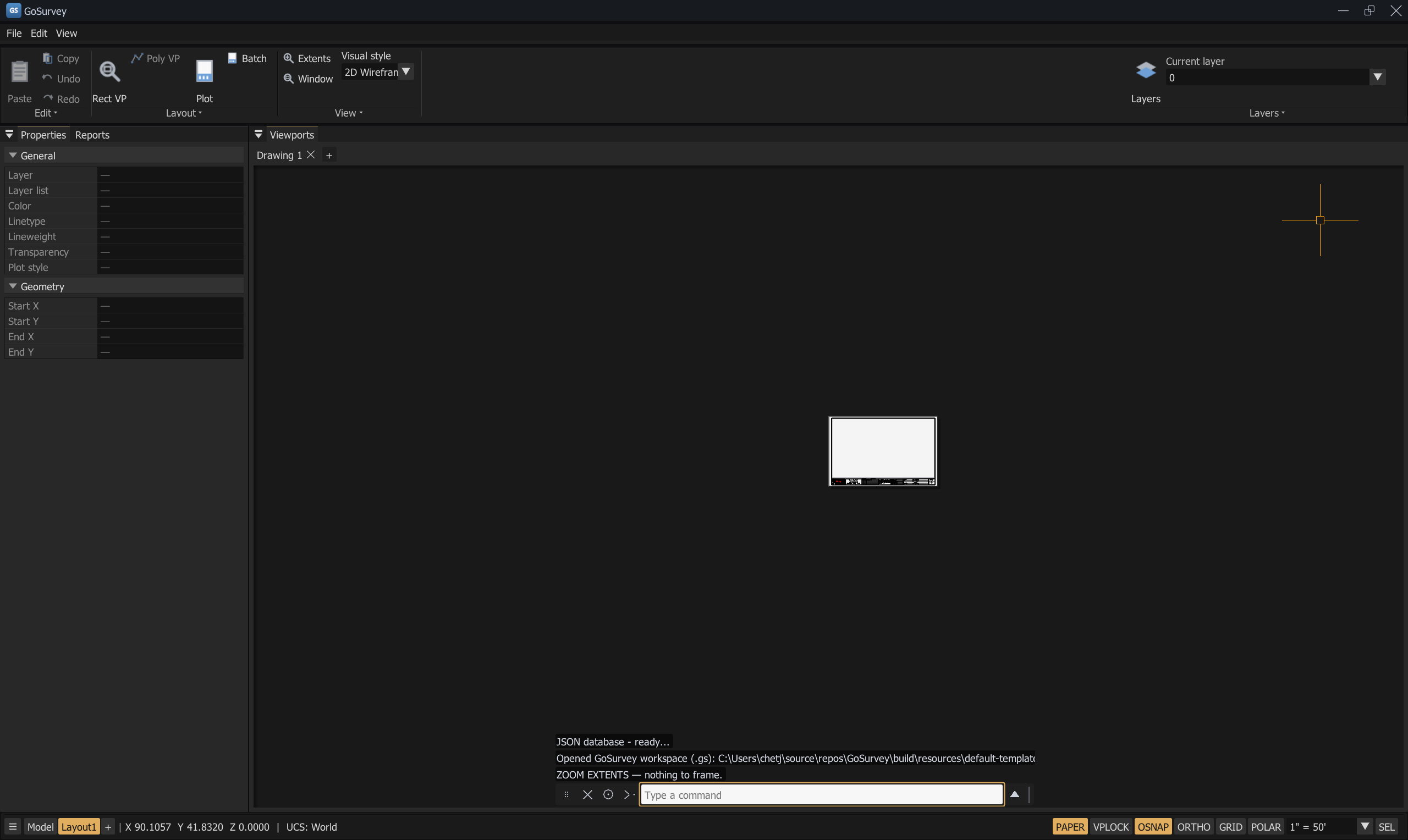
A paper layout. Note what changed: the ribbon has collapsed to the contextual Layout section
(Rect VP, Poly VP — greyed out — Plot, Batch), the status bar reads PAPER, and Layout1 is the
active tab beside Model.
Spaces
| Space | Status bar | What you are editing |
|---|---|---|
| Model | MODEL |
The drawing itself, in model units |
| Paper | PAPER |
The sheet: borders, titleblock text, viewport frames, in paper inches |
| Floating model space | FLOAT |
The model, seen and edited through a viewport |
Switching
| Method | Effect |
|---|---|
| Status bar MODEL / PAPER button | Toggles between model and the current layout |
| Status bar layout tabs | Switch directly to Model or any layout |
| ☰ hamburger menu | Model space · every layout · New paper layout |
| + button | Adds a layout |
| Double-click inside a viewport | Enter floating model space |
Click FLOAT, or press Esc |
Leave floating model space |
MSPACE / MS |
Edit the model through the selected viewport |
PSPACE / PS |
Return to paper space |
Managing layouts
Right-click a layout tab:
| Item | What it does |
|---|---|
| Rename | Inline text field |
| Move or Copy… | Reorder the layout, or duplicate it. Choose Before layout: ((move to end) is offered) and tick Create a copy |
| Page Setup Manager… | Paper size, orientation, plot settings — below |
| Viewports… | The viewport list for this layout |
| Delete | Removes the layout |
Page Setup Manager
The per-layout sheet and plot settings.
Current layout: and Current page setup: are shown at the top.
Page setups
A named collection of settings. New…, Modify…, Set Current, and Import… (which reports "Import page setups from another drawing — coming in a later update.").
Creating one asks for a New page setup name and a Start with: template — <None>,
<Previous plot>, <Default output device>, or an existing setup.
Display when creating a new layout controls whether this dialog opens automatically for new layouts; the same option is in Settings → Display → Show Page Setup Manager for new layouts.
Printer / plotter
Plotter:  PDF (vector) — built in        Where:  File
Device name:   GoSurvey PDF (DWG To PDF)
There is one output device: the built-in vector PDF writer. GoSurvey does not print to a Windows printer.
Plotter selection / PDF options arrive with PDF plotting (a later update).
Paper size
| Preset | Size (portrait) |
|---|---|
| ANSI A | 8.5" × 11" |
| ANSI B | 11" × 17" (default) |
| ANSI C | 17" × 22" |
| ANSI D | 22" × 34" |
| ANSI E | 34" × 44" |
| ARCH A | 9" × 12" |
| ARCH B | 12" × 18" |
| ARCH C | 18" × 24" |
| ARCH D | 24" × 36" |
| ARCH E | 36" × 48" |
| Custom | Enter width and height |
Drawing orientation — Portrait or Landscape. The presets are portrait sizes; orientation is applied per layout.
The dialog reports the result: Plot size: 17.00 x 11.00 inches (ANSI B (11" x 17")).
Plot area, scale, and offset
| Setting | Notes |
|---|---|
| What to plot / Plot area | What part of the sheet is plotted |
| Plot scale | Sheet plot scale |
| Fit to paper | Scale to fit |
| Plot offset (inches) — X, Y | Shifts the plot on the sheet |
| Center the plot | Centres it instead |
| Plot object lineweights | Honour lineweights |
| Plot transparency | Honour transparency |
| Plot paperspace last | Drawing order |
Plot styles / options apply once PDF plotting lands (a later update). Some of these controls are recorded but not yet acted on by the PDF writer.
Viewports
A viewport is a rectangular window on the sheet showing model space at a fixed scale.
Creating one
Ribbon (Layout): Rect VP Command: MVIEW, RECTVIEWPORT, RECTVP
Two clicks define the rectangle.
Poly VP — polygonal viewports — is on the ribbon but disabled: "Polygonal viewport — coming in a later increment."
The Viewports window
Right-click a layout tab ▸ Viewports…, or the Viewports button.
If you are in model space it says Switch to a paper layout to manage its viewports.
Per viewport:
| Field | Meaning |
|---|---|
| X, Y | Lower-left corner, paper inches, sheet origin at (0,0) |
| W, H | Size in paper inches |
| Center X, Center Y | The model point shown at the viewport centre |
| Scale (model/in) | Model units per paper inch — the AutoCAD viewport scale. 50 gives 1" = 50' |
| Layer | The viewport's own layer. If that layer is not plottable, the viewport border is omitted from plots — this is how you get a borderless viewport |
+ Add viewport and Delete viewport manage the list.
Editing the model through a viewport
Double-click inside a viewport to enter floating model space. The status bar shows FLOAT,
and the normal model ribbon returns so the draw and modify tools are available. Click FLOAT
or press Esc to leave.
VPLOCK
The status-bar VPLOCK button decides what pan and zoom do while a viewport is being edited in place:
| VPLOCK | Effect |
|---|---|
| ON | Pan and zoom always move the sheet — the viewport's model framing is protected |
| OFF | Pan and zoom adjust that viewport's model framing |
Turn VPLOCK on once a viewport is framed and scaled the way you want it. It is the difference between nudging the sheet and silently rescaling a finished view.
Per-viewport layers
A layer can be frozen or recoloured in one viewport only:
- Layer Manager → VP Freeze and VP Color columns act on the current viewport.
VPFREEZE/VPFandVPTHAW/VPTfreeze and thaw the picked entities' layers in the current viewport.
See Layers.
Drawing on the sheet
In paper space, draw and modify commands act on paper geometry measured in paper inches. This is where a border, a titleblock, and sheet notes belong.
- The clipboard moves objects between model and paper space at 1:1 raw coordinates — copy in model space, switch to the layout, and Paste. See Modify Tools.
- Selecting, grips, hover highlighting, and the Properties panel all work on paper objects.
DELETEin paper space requires a selection first —DELETE — select paper object(s) or viewport(s) first.ROTATElikewise —ROTATE — select paper object(s) first.ORBITrefuses — a sheet is 2D.
Plotting a layout
Layout ribbon → Plot (single layout) or Batch (several into one PDF). See Plotting.
Common problems
| Problem | Cause | Solution |
|---|---|---|
| Draw tools have vanished from the ribbon | You are in paper space, which shows the Layout section | Switch to Model, or double-click into a viewport |
| Zooming rescaled my viewport | VPLOCK was off while editing in place | Undo, turn VPLOCK on, and reframe with the Viewports window |
| The viewport border prints | Its layer is plottable | Put the viewport on a non-plottable layer |
| A layer I want hidden shows in one view | Layer On/Freeze are not enforced yet | Use VP Freeze, or VPFREEZE |
| DELETE does nothing on the sheet | Paper-space DELETE needs a selection | Select the objects or viewports first |
| The sheet is the wrong size | Page setup | Right-click the layout tab ▸ Page Setup Manager… |
| Poly VP is greyed out | Not implemented yet | Use a rectangular viewport |
Related
Plotting · Layers · Views and Navigation · Modify Tools · Annotation