Annotation
Annotation
Text, multiline text, dimensions, and text styles. Survey point labels are covered in Survey Points.
TEXT
Ribbon: Annotate → Text Command: TEXT
Single-line text at an insertion point.
TEXT — pick insertion, then height / rotation / string on command line (defaults from plot scale).
TEXT: Insertion — click or X,Y | ESC cancel
TEXT: Height — Enter for plot-scale default | ESC cancel
TEXT: Rotation ° CW from north — decimal/DMS or Enter=0 | ESC cancel
TEXT: Enter content | ESC cancel
- Insertion — click or type
X,Y. - Height — type a model height, or press Enter to use the plot-scale default.
- Rotation — degrees clockwise from north, decimal or DMS. Enter gives 0.
- Content — type the text and press Enter.
The plot-scale default height
New TEXT and MTEXT get their model height from two things:
model height = default text height (inches on the sheet) × model units per plotted inch
- Default text height (in) — Properties panel → General, with nothing selected.
- Model units per plotted inch — the annotation-scale dropdown on the status bar, or
PLOTSCALE/PSCALE.
So at 1" = 50' with a 0.10 in default height, new text is 5 model units tall — and it plots at
0.10 in regardless of scale. See Plotting.
MTEXT (MT)
Ribbon: Annotate → Mtext Command: MTEXT, MT
Multiline text inside a frame, edited on the drawing in a WYSIWYG editor.
MTEXT: First corner | ESC cancel
MTEXT: Opposite corner | ESC cancel
MTEXT: Edit in drawing box — Ctrl+Enter reformats | Save to place | Esc cancel
- Two corners define the frame.
- The rich-text editor opens in place on the drawing.
- Type. Enter breaks a line; Ctrl+Enter reformats; Save places the text; Esc cancels.
Double-click an existing MTEXT to reopen the editor on it.
The Text Formatting toolbar
Above the editing box:
| Control | What it does |
|---|---|
| Font | Font for the selection, or for what you type next |
| Height | Text height |
| B / I / U | Bold, italic, underline |
| Colour | Text colour |
| Justification | Top/Middle/Bottom × Left/Center/Right — nine positions |
Select characters first to apply a font, colour, or B/I/U to just them. With no selection, the setting applies to what you type next.
Two optional rows are toggled from Options ▸ Editor Settings: Show Options Row and Show Ruler.
The Options menu
| Item | Shortcut | Notes |
|---|---|---|
| Import Text… | — | Inserts the contents of a text file at the caret |
| Find and Replace… | Ctrl+R |
Within the MTEXT being edited |
| Change Case ▸ UPPERCASE / lowercase | — | Applies to the selection |
| All CAPS | — | Type new ASCII in all capitals |
| Autocorrect cAPS Lock | — | Fixes a word typed with Caps Lock inverted — hELLO becomes Hello |
| Character Set ▸ | — | Choose the character set |
| Remove Formatting ▸ From selected text / From the whole MTEXT | — | Strips styling |
| Editor Settings ▸ Show Options Row / Show Ruler | — | Editor chrome |
| Help | F1 |
— |
Items present but not functional
These appear on the Options menu and do nothing yet — the editor says so when you use them:
| Item | Message |
|---|---|
Insert Field… (Ctrl+F) |
Fields are not supported yet |
| Background Mask… | Background masking is not supported yet |
| Paragraph…, Paragraph Alignment, Bullets and Lists, Columns, Combine Paragraphs | Paragraph and column properties are not stored yet |
Editing keys
| Key | Effect |
|---|---|
Enter |
New line |
Ctrl+Enter |
Reformat |
Ctrl+Z / Ctrl+Y |
Undo / redo inside the text box |
Ctrl+C / Ctrl+X |
Copy / cut inside the text box |
Esc |
Cancel the edit |
Grips
A selected MTEXT shows grips you can drag to move it or resize its frame. Esc during a drag
cancels it.
Text styles
Ribbon: Annotate → Text style flyout Command: STYLE, ST, DDSTYLE
A named text style bundles a font and its effects, so all your annotation matches.
The ribbon flyout
Click the style name on the Annotate section for a grid of thumbnail previews — each card
renders AaBb123 in that style. Click a card to make it current. Manage Text Styles… at the
bottom opens the full dialog.
The Text Style dialog
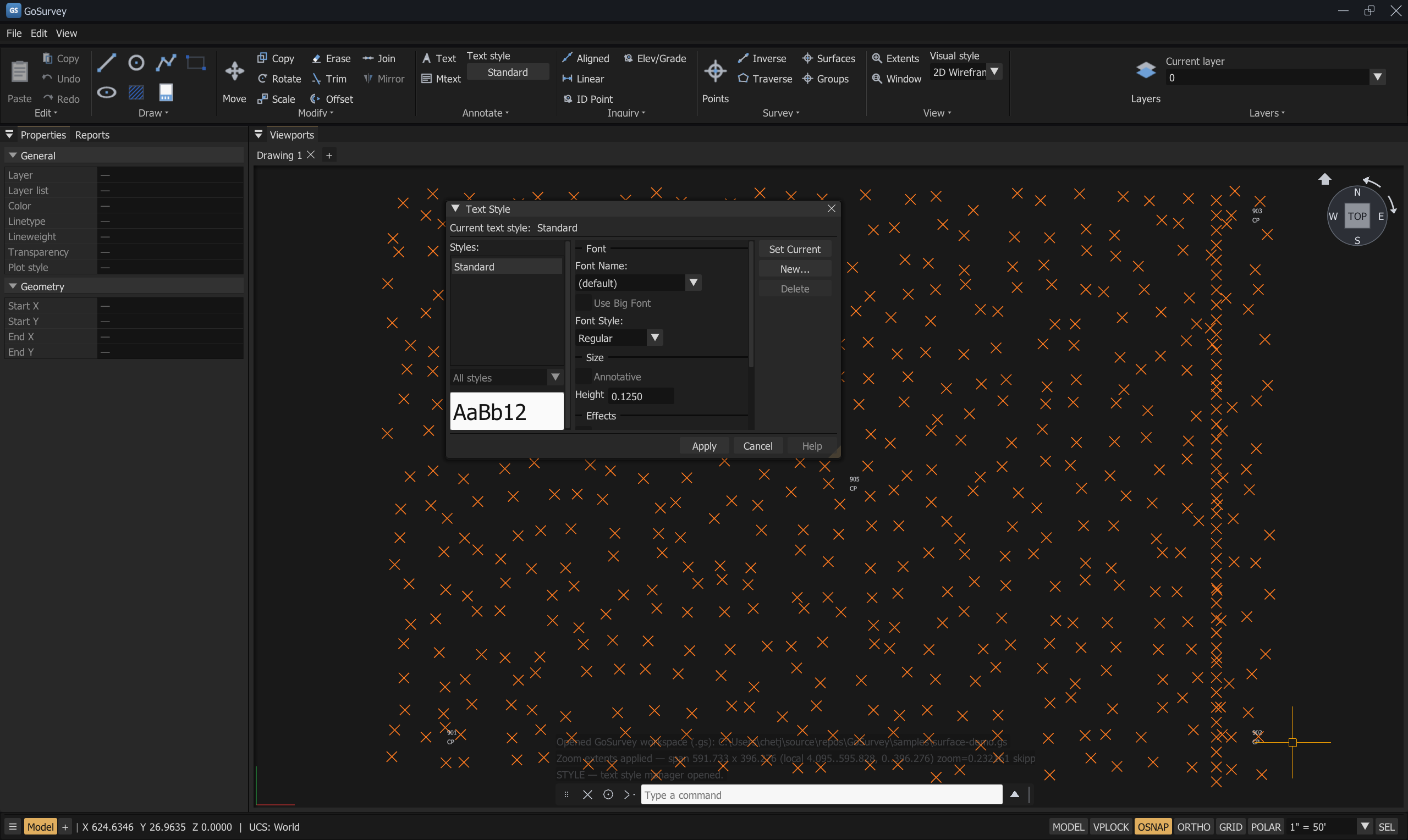
| Area | Fields |
|---|---|
| Styles: | The list of styles, with All styles filtering |
| Font | Font Name ((default) unless set), Use Big Font, Font Style (Regular / Bold / Italic / Bold Italic) |
| Size | Height, Annotative |
| Effects | Backwards, Oblique Angle |
| Preview | Live AaBb12 sample |
| Buttons | New…, Set Current, Apply, Delete, Cancel, Help |
Rules the dialog enforces:
Standardcannot be deleted.- A style in use by existing text cannot be deleted — "Style is in use by existing text — cannot delete."
- Names must be unique — "A style with that name already exists."
Fonts
GoSurvey ships a large set of SHX fonts (romans.shx, GENISO.shx, symbol fonts, and more) in
resources/fonts, and can also use system TrueType fonts.
Dimensions
Three dimension commands. All of them are created from picks and carry their own extension lines and text.
DIMALIGNED (DAL)
Ribbon: Inquiry → Aligned
Measures the true distance between two points, parallel to the line joining them.
DIMALIGNED — extension 1, extension 2, then offset (point away from measured line). ESC cancels.
- First extension point
- Second extension point — accepts
@dx,dyfrom the first - Dimension line position — pick a point away from the measured line
DIMLINEAR (DLI)
Ribbon: Inquiry → Linear
Measures the horizontal or vertical component between two points.
DIMLINEAR — ortho distance in X or Y between extension points; third pick sets dimension line
- First extension point
- Second extension point
- Dimension line position — moving the cursor chooses the orientation. Typing
Hlocks it horizontal andVlocks it vertical; moving the cursor again unlocks.
DIMANGULAR (DAN)
Ribbon: — Command: DIMANGULAR, DAN
Measures the angle between two rays from a vertex. The text is degrees, minutes, and seconds.
DIMANGULAR: Vertex | X,Y | ESC cancel
DIMANGULAR: First ray point | X,Y | @ from vertex | ESC
DIMANGULAR: Second ray point | X,Y | @ from vertex | ESC
DIMANGULAR: Arc radius (bisector) | click | X,Y | @ from vertex | ESC
- Vertex
- First ray point
- Second ray point
- Arc position — sets the radius of the dimension arc along the bisector
Editing dimensions
Select a dimension and drag its grips to move the dimension line or the text. Properties shows its layer, colour, and geometry.
DXF note — aligned dimensions are written to DXF as exploded lines plus text, not as associative
DIMENSIONentities. They will look right in another CAD program but will not be live dimensions there. See Import and Export.
Annotation scale
The status-bar plot-scale dropdown (and PLOTSCALE / PSCALE) sets model units per plotted
inch. Changing it:
- changes the model height new TEXT and MTEXT are created at;
- repositions survey point labels, which are laid out in plotted inches around their point.
Existing text is not resized. See Plotting.
Related
Properties · Layers · Survey Points · Plotting · Drawing Tools